Account Management
Accounts List
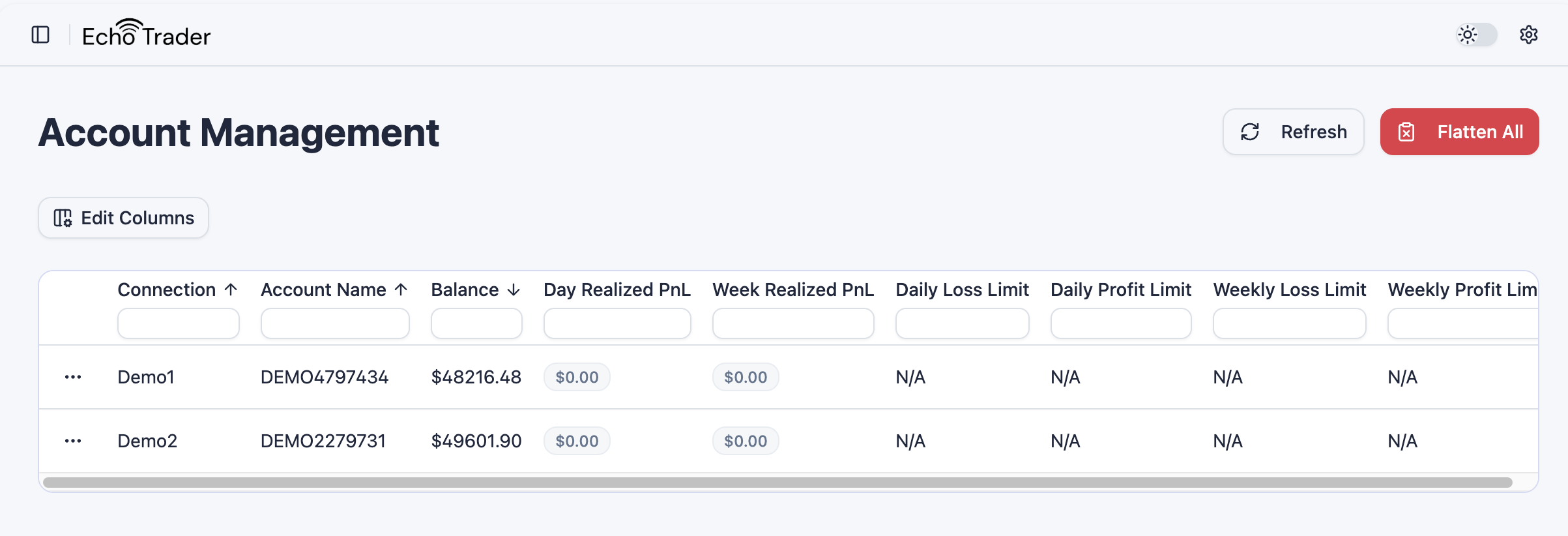
Navigate to the Account Management tab and you will be able to see a list of all connected accounts. It is important to note that your connections must be connected to view the latest informaiton for accounts under that connection. If you have an active connection and PnL information is out of date, simply click the Refresh button to get the latest details about your accounts.
Important Note: The Drawdown column is updated each time a connection is established. If your drawdown for an account is out of date, simply reconnect the connection. As Echo Trader develops live updates, drawdown will become more real-time.
Account Live Updates
The Account Management tab will show real-time position updates in the "Position" column. The column will read "Flat" if you have no open positions for the account.
For example, if you have 2 contracts that are filled at $25,000 on MNQH6, the Position column will read "2 Long - MNQH6 @ $25,000".
If you have 2 or more positions filled at the same time, the column will show all positions you have filled for each account until each position goes flat.
This can help you understand in real-time what positions you have open on any connected account at any given point in time. It's a best practice to monitor these real-time updates and take action if you have an unexpected position open.
Important Note: The connection associated with you account must be actively connected to receive real-time position updates.
Flatten Positions
Close a Single Position
Each open position in the Position column has a small ✕ button next to it. Click it to close just that one position on that account, without touching your other positions. A confirmation dialog shows the account and the exact position (e.g. "2 Long - MESU6") before anything is sent — closing a position submits a market order and cannot be undone.
Use this when you want to exit one contract while leaving the rest of the account's positions open. To close everything on an account at once, use Flatten Account below instead.
Flatten Per Account
Important Note: As a best practice, flatten per account rather than using the "Flatten All" feature. Flattening your leader account will then copy the action to your follower accounts. It is a quicker and more lightweight operation to flatten just a leader account and then allowing Echo Trader to copy the action to follower accounts rather than using "Flatten All".
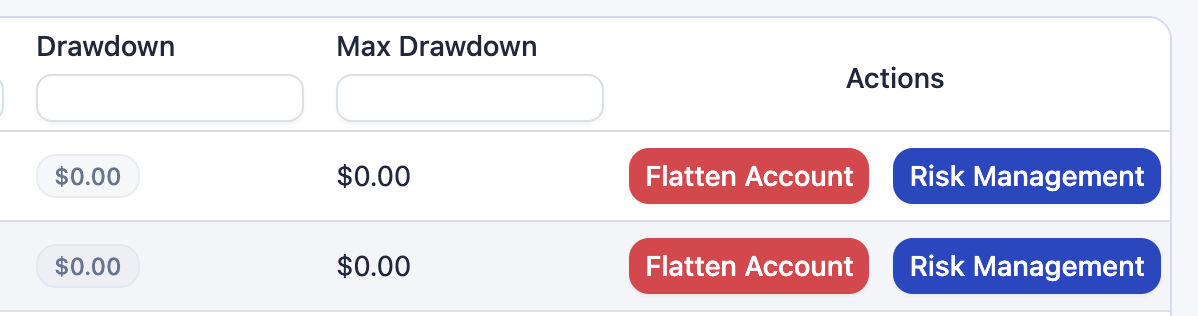
You can also flatten a single account's orders by clicking the Flatten Account button.
Flatten All
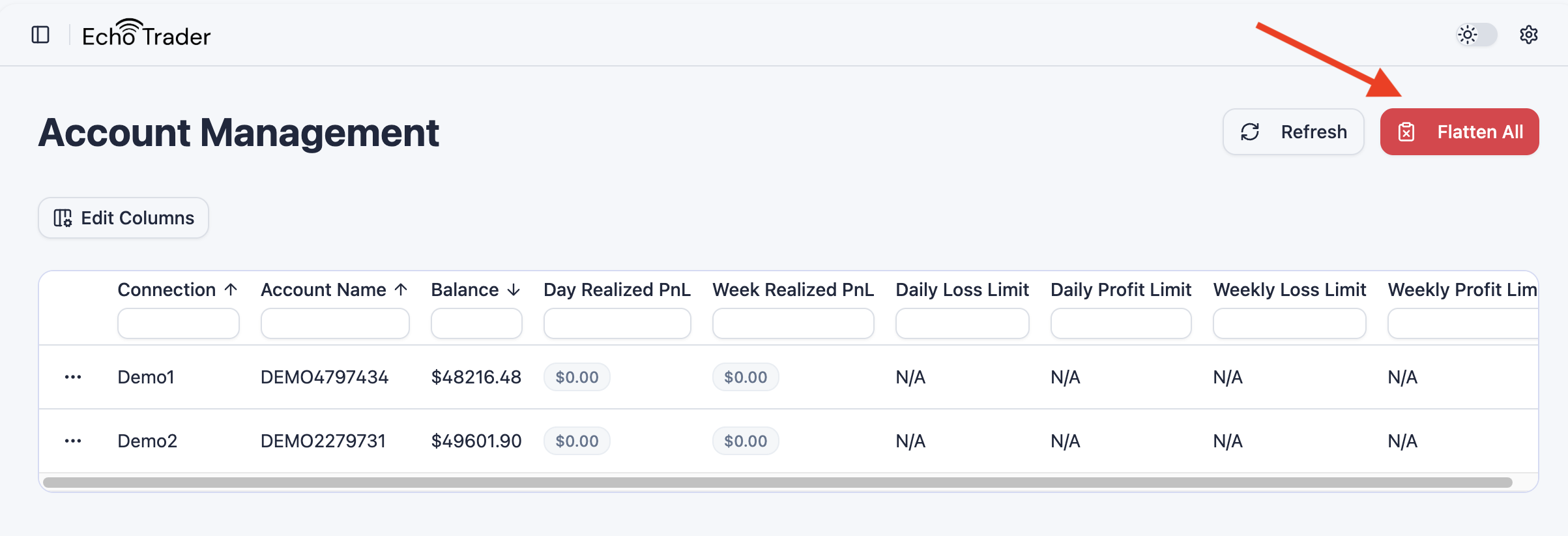
Important Note: Flatten All will flatten orders on your leader accounts first, and then all of your followers. This operation is more expensive than simply flattening a single leader account, but is available for use if needed.
To flatten all orders, click the Flatten All button.
Risk Management
Built In Echo Trader Risk Management
Each Echo Trader group comes with the ability to automatically flatten a follower account's positions for a particular contract when a leader account's positions are flat for the same contract. There is nothing you need to do to enable this functionality because it is automatically enabled when a group is enabled. This functionality is an extra layer of protection to help follower accounts stay in sync with leader accounts, but is not guaranteed to work due to brokerage and exchange limitations.
Important Note This built in feature has the ability to flatten a follower up to once every 20 seconds to stay within brokerage limitations. It will flatten all positions in the account for the particular contract.
Accounts can become out of sync for any number of reasons including broker connection issues or user error. It is always a good idea to monitor your account's positions as you use Echo Trader's copy trading software.
As an example of this feature, if leader Account A buys 2 contracts on MNQ and follower Account B buys 2 contracts on MNQ, and along the way another manual buy order for 3 contracts is placed on MNQ on follower Account B. If leader Account A moves from 2 contracts long to 0 open positions, and follower Account B sells the original 2 contracts, follower Account B would now be at 3 long contracts. Echo Trader will make a best effort to flatten the remaining 3 MNQ contracts on follower Account B.
To disable this functionality, simply disable or delete the group, or you can disconnect a connection to prevent any additional trade copying.
Setting Profit and Loss Limits
Echo Trader allows you to conveniently manage your daily and weekly profit and loss limits on your accounts from a single location. To do so, click the Risk Management button for the desired account.
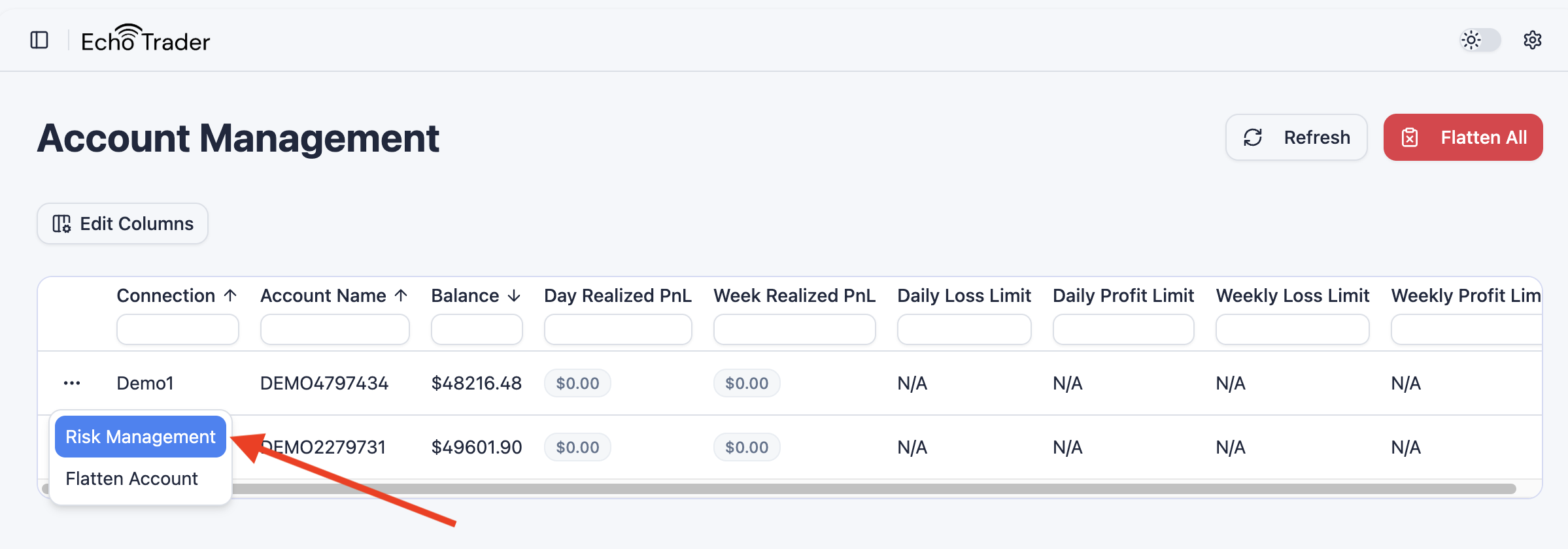
A popup will appear where you can set your daily and weekly profit and loss limits for that account. Click Save Settings when done.
Editing Columns
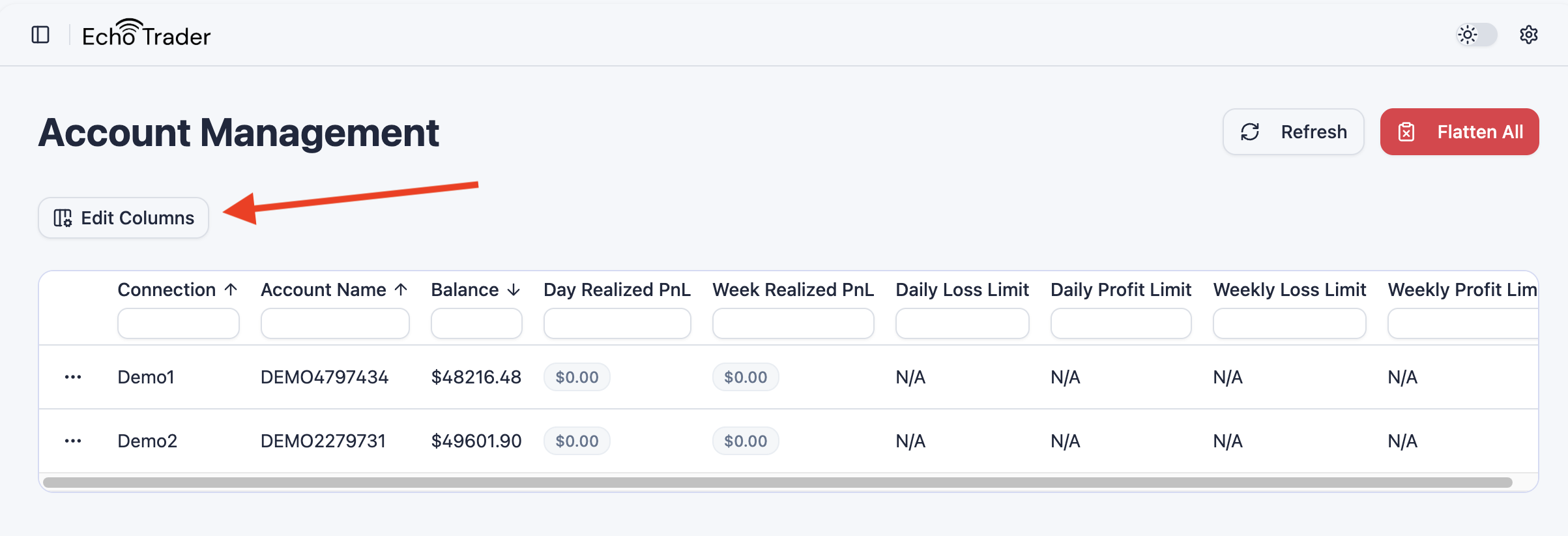
To edit the visible columns on the page, click the Edit Columns button. A popup will appear where you can select any or all columns to make visible on the screen.
Daily P&L Certificate
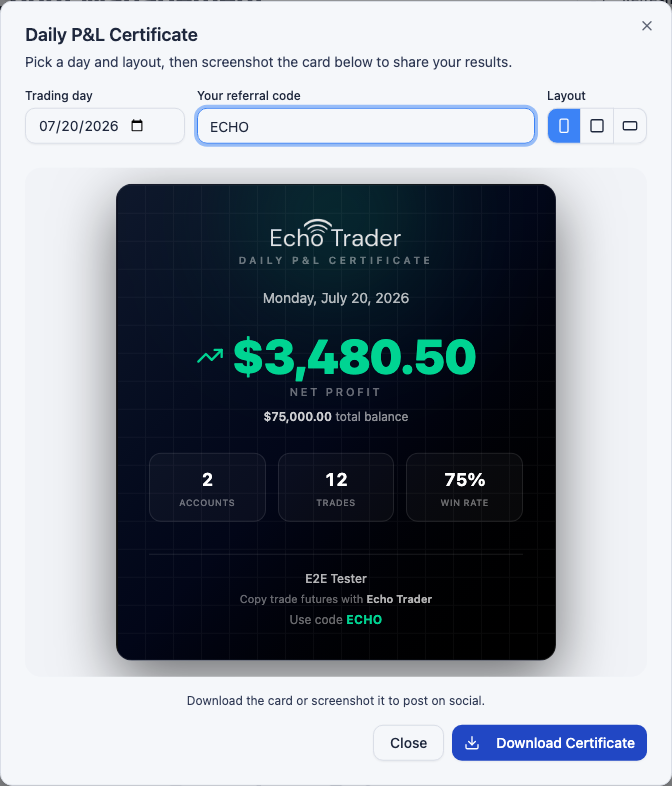
The Daily P&L Certificate is a clean, branded graphic that summarizes a day's trading results across all of your connected accounts. It's built for sharing — post it on social media or in your trading community to show off your day.
To create one, click the Daily Certificate button at the top of the Account Management tab.

A popup will appear showing the certificate for today's date. The certificate includes:
- Net Profit / Net Loss for the day
- Total Balance across the included accounts
- Accounts, Trades, and Win Rate
- Echo Trader branding and your referral code
Choosing a Day
Use the Trading day picker to generate a certificate for any past day. The certificate always defaults to today when you open it.
Layout Options
You can switch the certificate between three layouts using the Layout toggle — Portrait, Square, and Landscape — to best fit where you're posting it. Echo Trader remembers your last choice for next time.
Adding Your Referral Code
Enter your referral code in the Your referral code field and it will appear on the certificate as "Use code XXX". This is a great way to earn affiliate credit when others sign up. Your code is remembered for future certificates.
Downloading the Certificate
Click Download Certificate to save the card as a high-resolution PNG image, ready to share. You can also simply take a screenshot of the card if you prefer.
Important Note: Certificate stats such as trades and win rate come from your synced orders. When you open a certificate for today, Echo Trader will attempt to sync that day's orders automatically. If today's orders aren't available yet, the certificate falls back to showing your live day P&L for the accounts, labeled with a "Live" badge. To see full stats for older days, sync your orders from the Metrics tab.